The Content Library app offers a collection of video and photo content that can be used to create playlists.
Accessing the Content Library
To access the Content Library:
- Log into Enplug.
- Click the Apps drop-down in the top menu.
- Open the Content Library app.
- Enter Content Library in the search bar if needed
- Enter Content Library in the search bar if needed
Creating a New Playlist
- Follow the steps above to launch the Content Library app.
- Choose New Playlist.
- Enter a Playlist name.
- Navigate the Categories and Tags, or use Your Uploads, in the left-side menu to add content.
- Click the green plus icon or Add button to add content to your playlist.
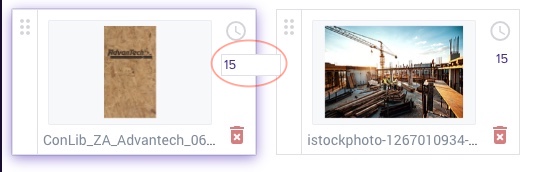
- Adjust the duration of photos by entering the desired time below the clock icon next to the image.
- Video length can't be adjusted.
- To adjust the positioning in the playlist of an image or video, click and hold the grid icon to drag-and-drop.
- Use the Transition dropdown above the preview window to select the transition type between content.
- Once completed, click Save in the upper right corner.
- Select the display(s) you'd like to send the playlist to, then click Save Changes.
Note: The saved settings of a playlist can be adjusted at anytime.
Choosing a Created Playlist
- Follow the steps in the Accessing the Content Library section to launch the Content Library app.
- Click Choose a playlist.
- In the top menu, select My Playlists (playlists previously created for the account) or Choose Playlist (pre-made templated playlists).
- Select a playlist from the available options.
- Make desired adjustments.
- Once completed, click Save in the upper right corner.
- Select the display(s) you'd like to send the playlist to, then click Save Changes.
Notes:
- When a playlist template is opened, edited, and saved, that copy is specifically for your account and will be stored in My Playlists.
- When a playlist is copied, changes to the original won't affect the copy. To use the most recent content, a copy of an up-to-date playlist will be needed.
Content Expiration Dates
Some content has an expiration date and will only display during a certain period (seasonal, holidays, etc.).
Items with expiration dates will be noted with an orange information icon. This will detail the time/dates that the content is active.

Note: Items will remain in your playlist after expiring, but won't display.
For questions or concerns, please reach out to our Support Team at support@spectrio.com.